How to Make a Seamless Instagram Carousel in Three Taps
Pick your photos. Tap export. The slides are cut for you, so swiping through the post feels like moving along one picture instead of flipping through a stack of them.
Imagine a long photograph — wider than your phone. Too wide to look at all at once.
So you cut it into a few tall pieces and lay them side by side, in order. Now you can look at the first piece, then slide it away to see the second, then the third. The picture never changed. You just moved along it.
That is a seamless carousel. One picture, several slides, and every swipe carries on from where the last one stopped. Nothing restarts. Nothing jumps.
Most carousels aren't like that. Most are a pile of separate photos, and every swipe is a small interruption — a new picture, a new thing to work out. A seamless one asks nothing of the viewer. They swipe because the picture is going somewhere.
Why bother
A carousel is the only kind of post that asks the viewer to do something. One tap of the thumb, and they get more.
That is worth having. People stay with a carousel longer than they stay with a single photo, because there's something left to find. And a seamless carousel is the strongest version of that, because the reason to swipe is built into the picture itself. You aren't hoping they'll be curious about photo number two. You're showing them half a boat and letting them go and find the rest of it.
The easy bit: three taps
Here's the part people expect to be hard. It isn't. There is no measuring, no grid, no working out how many slides you need.
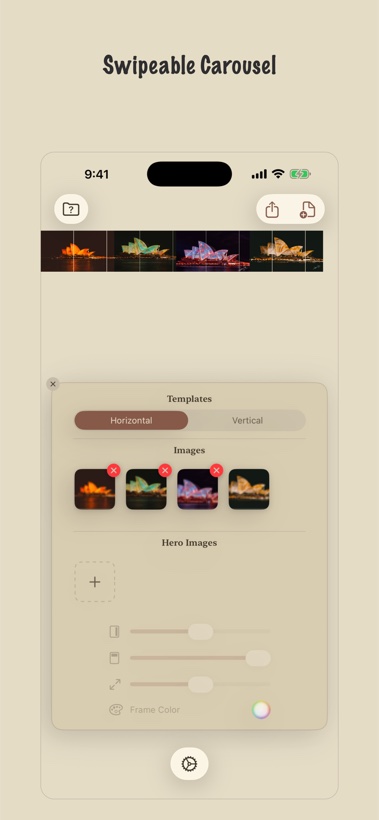
In FRME:
- Import your photos. One wide one, or a handful. They line up in the order you picked them.
- Choose Carousel, then Horizontal. The strip appears straight away, with the cut lines drawn on it, so you can see the slides before you commit to them.
- Tap export. Every slide is saved to your photos, in order, in one go.
That's it. The app decides how many slides the picture needs and cuts them at the right places, and it crops each photo to fit the strip so the edges line up exactly. No gaps, no jog where one slide meets the next.
Then open Instagram, start a new post, choose "select multiple", and tap your slides in order — Instagram numbers them as you tap, and those numbers are the swipe order. Post it, and it scrolls as one picture.
Don't like where one of the cuts landed? Press and hold a photo in the Images row and drag it somewhere else in the line-up. The strip is rebuilt in the new order, so the cuts fall in different places. Adding a photo or taking one away does the same thing. You can see it happen in the preview each time, so you can shuffle until you like it instead of saving and checking.
Then make it yours
Once the carousel works, three things let you build on top of it. All of them are optional. All of them are a tap or two.
Hero images are small photos that sit on top of the strip. Think of a polaroid dropped onto a big picture. You can add up to three. Tap one and three sliders appear: two to move it around, one to make it bigger or smaller. The good trick is to park one right on a cut, so it hangs half on one slide and half on the next — the viewer sees half a photo and swipes to find the other half. They wear the same border as the carousel does, so they look placed rather than pasted.
An end card is a line of writing at the end of the post. When the picture runs out slightly before the last slide does, there's a little clear space left over — and that space is the perfect spot for your handle, or where the photo was taken, or the size you print it at. Type it once and the app prints it there, choosing a colour that's readable against the background so you don't have to think about it.
Text goes anywhere you want it. Up to three lines, and you pick what each line is rather than picking a font:
- Title — big, straight onto the photo.
- Caption — sits in a bar across the picture, so it stays readable over anything.
- Mark — small and quiet, like a signature.
- Sticker — a little pill with the words inside it.
Choose the style, type the words, and move it with the same sliders you already used. The app works out the colour so the writing never disappears into the photo underneath.
And under Styling there's the border: its colour, and how much space sits around everything. Set it to none and your photos butt straight together with no line between them at all.
Two other shapes, while you're here
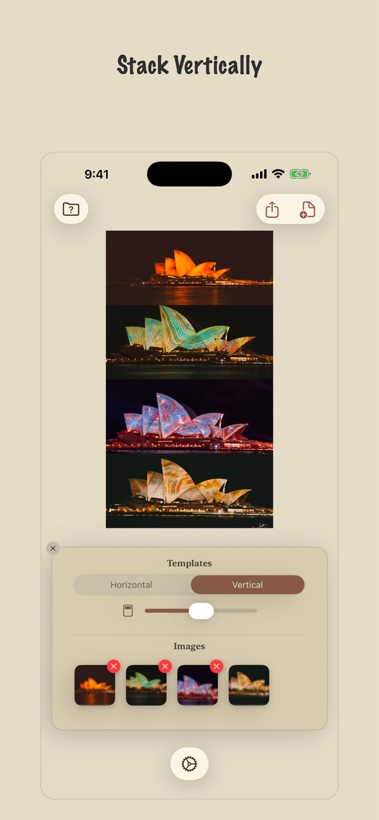
Vertical stacks your photos into one tall picture with a gap you can widen or close. It's a single post, not a swipe — good for when you'd rather people saw the whole set at once than swiped and stopped at the second one.
Poll puts two pictures head to head, side by side or one above the other. Two edits, two crops, two prints. It's made to be argued with.
What it costs
Importing, editing and previewing is free — no account, no sign-up, no time limit. A subscription is what saves the finished slides to your photos, and new subscribers get the first week free on the weekly plan.
Everything is made on your own phone. Your photos are never uploaded anywhere, which is more than most of the carousel splitters on the web can say — nearly all of them want your full-size original on their server before they'll do anything with it.
FRME is on the App Store and Google Play. There's more of it on the app page — wall-art mockups, film-look video, scrapbook pages.
Pick your photos, tap export, post them in order. Everything after that is decoration.